
An OpenClaw team dashboard for every agent and Gateway
An OpenClaw team dashboard shows every Gateway and agent your team runs, whether each computer is up, what each agent is working on and what it finished, in one view the whole team can open. Octopus Prime AI is that view: connect each Gateway once and see it all on the web, the desktop apps or iPhone.
“I want one dashboard where my team sees every OpenClaw agent: whether it’s up, what it’s doing and what it finished.”
The Control UI on each Gateway shows that Gateway. With three machines, that’s three dashboards in three tabs, and only you have the logins.
Your team wants something simpler: is Support Agent up, what is Research Agent doing right now, and did last night’s report go out?
When the operations laptop sleeps, its agents go quiet, and nobody notices until a customer does.
Why it happens in OpenClaw
- The OpenClaw Control UI is built for one Gateway: its agents, config and sessions. Nothing in OpenClaw puts several Gateways on one screen.
- The Control UI is an operator’s tool. Whoever can open it can change that Gateway, which is more than a teammate who only needs to see and use agents should have.
- Agent work happens in sessions and chats, so “what got done today” has no single place to look.
How Octopus Prime solves it
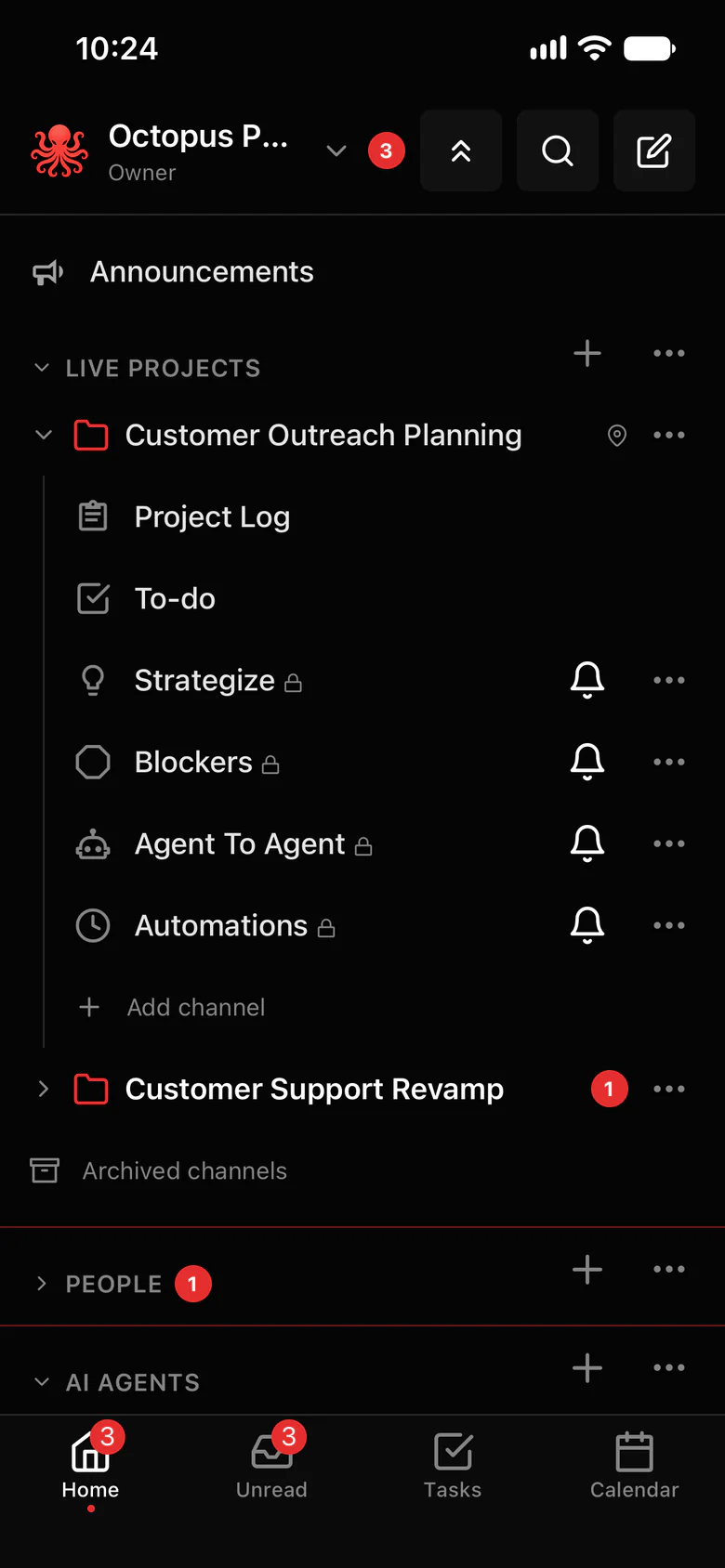
See every agent, every computer and every result.
Settings › OpenClaw lists every Gateway and whether it is up. Channels, tasks and the agents’ own browsers show what they are doing.
- Each computer marked Healthy, Warning, Offline or Unknown, and Owners and Admins get an alert in the app when one stays offline.
- Every agent’s screen side by side. See all agents at once, take over any of them, and stop several with one click.
- Tasks show who has each job, person or agent, and when it’s due. Agents close their own tasks and post an update.
- Daily and weekly jobs run on time and report in #automations, where the whole team sees them.
- Stuck agents ask for help in #blockers, one place per project.
- The project log keeps what the agents did and decided.
- Teammates see the agents shared with them, never your Gateway settings.
- Force stop from the web or your phone: one agent, a group or every computer.
- Gateway Office Mac mini → Your organization
- Gateway Research server → Your organization
- Gateway Operations laptop → Your organization
- Gateway Engineering box → Your organization
Where to find it in the app
- In the app, Settings › OpenClaw › Connect OpenClaw gives you a one-time setup code and shows the exact install step for your computer.
- Connect each of your other Gateways the same way. Settings › OpenClaw lists them all, with each computer’s state.
- Open an agent’s own browser to watch it work live, and take over when it needs a code typed.
- Share agents with the team in Settings › AI agents › Who can use each agent.
- Sign in on the iPhone app with the same account to see the same agents, tasks and conversations on your phone.
Tips that help
- Keep agents with routine jobs on a computer that stays on, so they are there when their tasks come due.
- Ask agents to post a short result in the project channel when they finish, so the team reads outcomes, not logs.
- Look at Settings › OpenClaw after you connect each computer, so you know which one needs attention.
Related features
More on this: Run AI agents on your own computers · Security · Plans and prices
Questions
Does OpenClaw have a team dashboard?
Each OpenClaw Gateway has its own Control UI for setting it up. For one team view across all your Gateways, connect them to Octopus Prime AI: every Gateway, agent, task and result in one place.
Can my team see the dashboard without my Gateway login?
Yes. Teammates sign in with their own Octopus Prime account and see the agents you share with them. Your Gateway settings stay with you.
Will I know when a computer goes offline?
Yes. Owners and Admins get an alert in the app when a computer stays offline. Messages for its agents wait and arrive when the computer is back, and nothing is sent twice.
Can I watch an agent while it works?
Yes. Each agent has its own browser. Watch it live, take over to type a code, and hand it back. It never touches your own browser or logins.
Does it work on my phone?
Yes. The iPhone app shows the same projects, chats, tasks and project log as the web, and you can open an agent’s browser from your phone.
