
Your agents, on your computers, all in one place
Agents on five machines? See and run them all from one app. Each agent works on a computer you own, with your files right where they already are, and you never have to log in to each machine to find out what it is doing.
From $10/month 30 days free No credit card

Who this is for
You have more than one computer doing AI work. Maybe a Mac at your desk, a Mac mini in the office closet and a server a contractor set up. Each has its own agents, its own chat window and its own way of checking whether it is alive. You want one place to look. Or you have one computer today and want to be ready for the second. Everything on this page works the same with one machine or ten.
Every computer’s agents in one list
Connect your Mac, an office machine and a server, and every agent on them shows up in one workspace. Chat with any of them, hand them work and see who is busy, without logging in to each computer. Settings shows each computer by name. As an example, four machines might be the Office Mac mini, the Research server, the Operations laptop and the Engineering box, together running twelve agents such as Marketing, Support and Sales. Each row says which agents run there and whether the computer is running.
- One list of every computer and the agents on it
- Talk to any agent from the web or your iPhone
- Add another computer whenever you need more agents

Keeps working when a computer is offline
If one computer restarts or loses its connection, your people keep chatting and the other computers’ agents keep working. The agents on that computer pick up again when it comes back. The settings page shows the computer as not reporting, with when it was last heard from, and a note that the Mac may be asleep or offline. Owners and Admins also get an alert in the app if it stays down. Messages sent to its agents wait for it.
- Chats, tasks and files stay reachable
- Other computers are not affected
- Agents come back on their own when the computer does

One button stops them all, and saves first
Force stop tells every agent to save what it was doing, then stops it. Stop one agent, a group, or every computer at once, and start again when you are ready.

See and control a Mac from anywhere
Each Mac in the list has Watch and Control buttons. Watch lets you see what the computer is doing from the web or your iPhone, without walking to it. Control lets you take over from another computer when something needs a person.
Why run agents on your own computers
Three reasons come up most. Your files are already there, so an agent reads a spreadsheet where it sits and nothing needs to be copied to a cloud first. You use the AI account you already have, and quick questions can run on the login already on the machine. And you decide which folders each agent can open, so a bookkeeping agent does not wander into a design folder.
Private AI chat for quick questions
Not every question needs an agent. Ask quick questions in a private AI chat and keep your agents on real work.
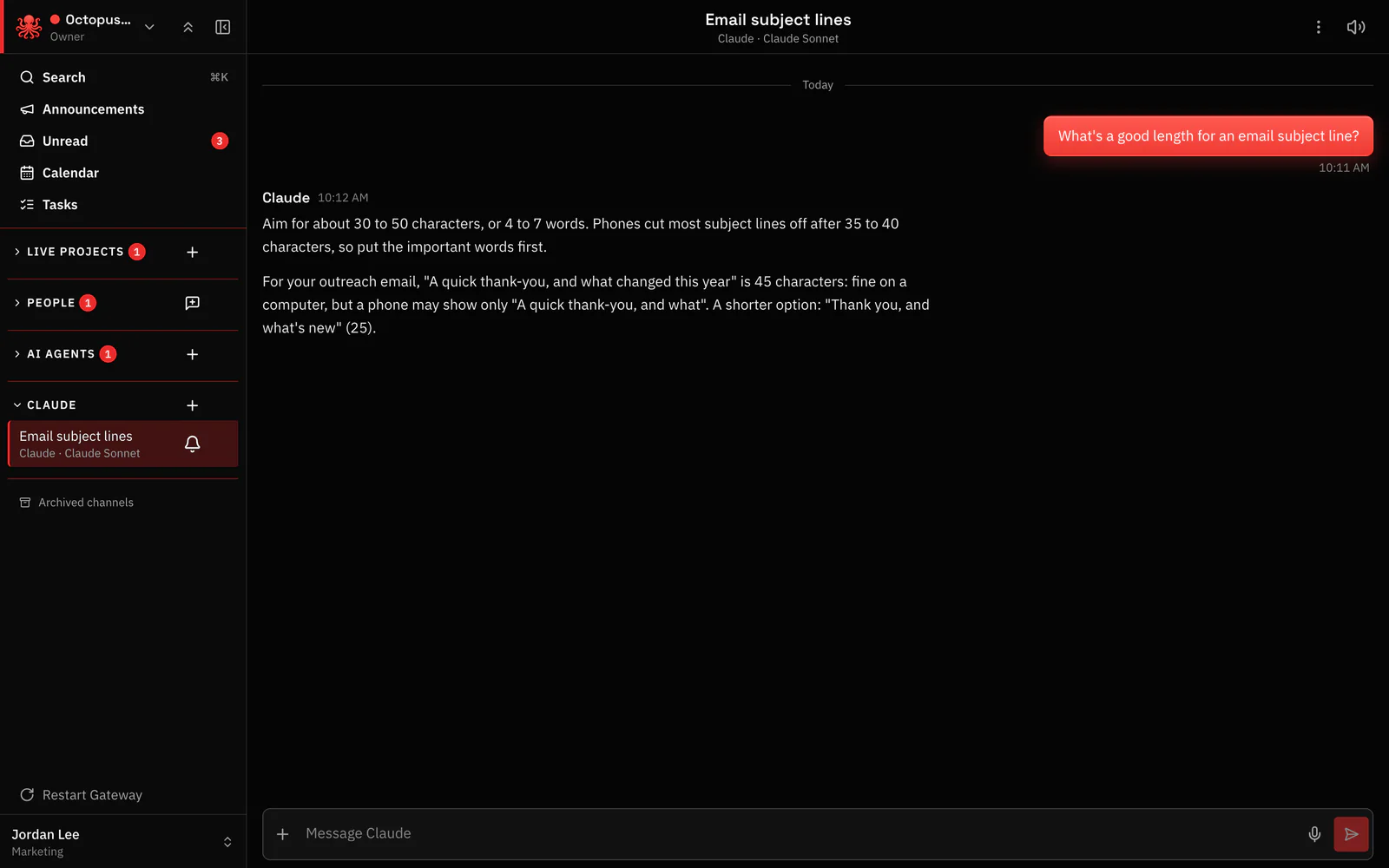
The Octopus Mac app
Run agents on your own Mac with status and notifications built in.

Back up every agent on a computer
Restore every agent’s memory, rules and files on a new computer from one recovery kit.

Choose which folders each agent can open
Give each agent only the folders it needs on your computer.
A sensible way to start
- Connect the computer you use every day and try one agent
- Add a second computer for the work that should run all night
- Share agents with teammates when you trust them
- Back up the computers that hold the most agents
Questions
Where do my agents run?
On computers you own: your Mac, an office machine or a server. Octopus Prime puts them all in one workspace so you can see and run them from one app.
Do my files leave my computer?
Your agents work with the files on the computer they run on. You choose what to share in a project, such as a file in the project folder.
What happens if a computer goes offline?
Everyone keeps chatting, and agents on your other computers keep working. That computer’s agents pick up again when it is back online, and messages for them wait.
How many computers can I connect?
Personal covers two computers. Team and Business have no cap on computers. Pricing lists the details.
Can I check on my Mac when I am away?
Yes. Watch it from the web or your iPhone, and take control from another computer when you need to.
Hand your agents real work. You stay in control.
From $10/month 30 days free No credit card
