
An AI agent for your email that asks before it sends
Connect your email and your other apps once. Your agent sorts the inbox, drafts replies and follows up through a sealed connection, and it never sees your password. This page shows what a Monday morning with it looks like.
From $10/month 30 days free No credit card
Connect your apps once
Open Settings › Connections, choose the app and sign in once with your own login. Then pick which agents can use it: just yours, one project’s or the whole company’s. Agents act through that connection and never hold the password. Every app works. Your agent uses it through a browser of its own, with your login, and you can watch it and step in, for example to type a code. Disconnect an app, or take an agent’s access away, at any time.
- Email, calendar, files and more in one list
- Sign in once; agents use the sealed connection
- Disconnect an app anytime
Sorts, drafts and follows up
Ask your agent to sort the morning’s email, draft the replies that matter and chase the ones that went quiet. Drafts wait in your project for a look. A good first request is specific: “Go through yesterday’s email. Put customer questions first, list anything that needs me today, and draft replies to the three most urgent in my voice. Don’t send anything.” You come back to a short list and three drafts.
A Monday morning example
At 8:00 your agent posts in the project: eleven new emails, four from customers, one invoice, six newsletters. It lists the four customer messages with a line about each. It drafts replies to two and asks you about the other two, because they mention a price and you told it never to quote a price over email. You edit one draft, approve the card for the first and tell the agent to wait on the second. Five minutes, and the inbox is under control.
Replies that sound like you
Teach the agent how you write once: greeting, sign-off, how formal, what you never say. It keeps those notes and uses them for every draft, so replies stay yours rather than sounding like a machine.
Asks before anything goes out
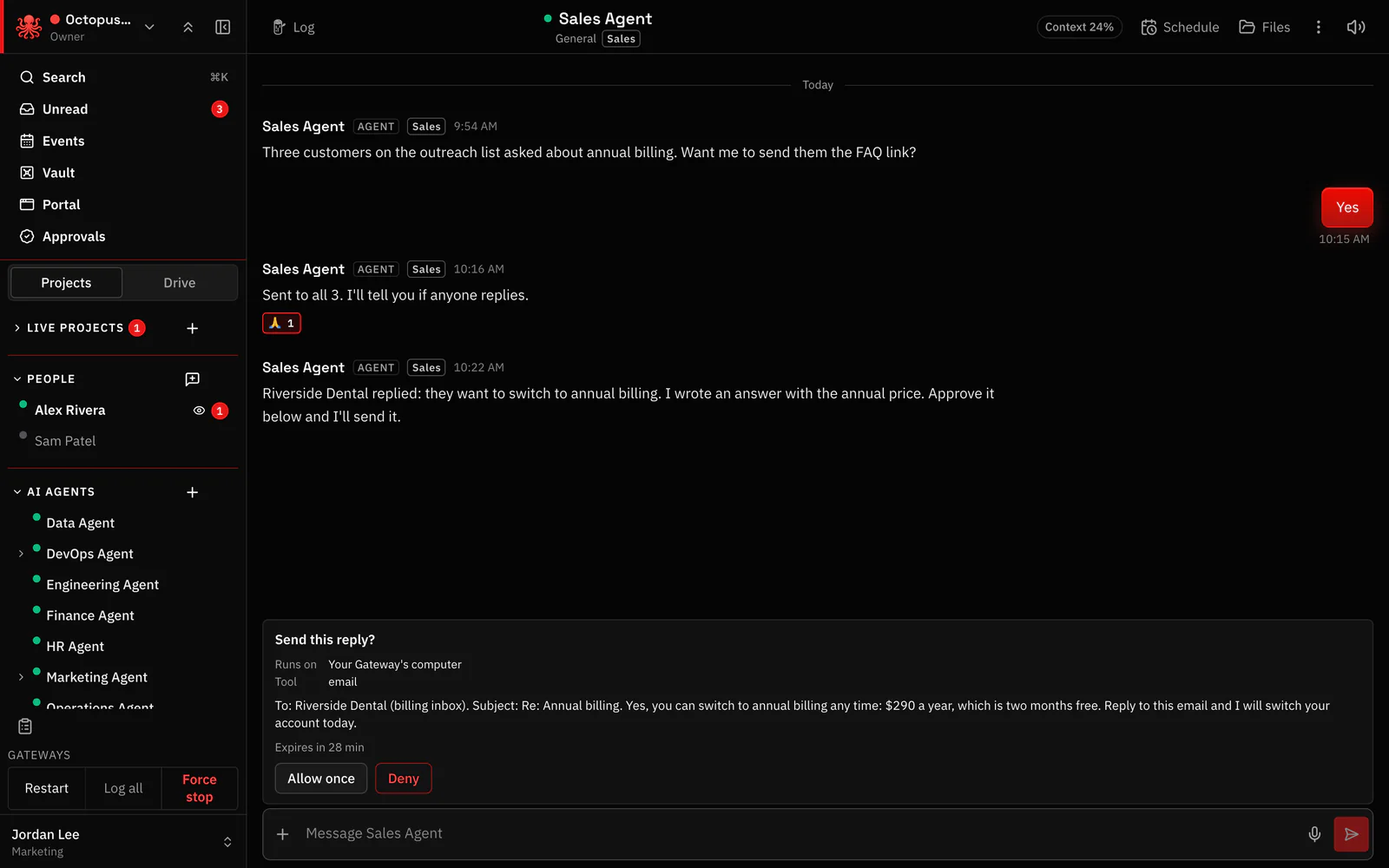
Choose which actions need your OK first, such as sending an email or using a login. A card appears in the chat, such as “Send this reply?” with the email to the customer and Allow once and Deny buttons, and you approve it with one tap from the web or your iPhone.
Keep an email agent just for you
Whoever can use an agent can use what it reaches, and an email agent reaches your inbox. New agents start as “Just me”, which is the right setting for this one. Share a team inbox agent with the people who should see that inbox, and nobody else.
Questions
Does the agent see my email password?
No. You sign in once and the agent uses that sealed connection, so it never sees or stores the password.
Will it send email without asking?
Only if you let it. You decide which actions need your OK first, and you approve them with one tap.
Which apps can I connect?
Open Settings › Connections, choose an app and sign in once with your own login. Your agents can use it from then on.
Can it delete email?
Only if you allow it. Deleting is one of the steps you can mark as needing your OK first.
Who else can use my email agent?
Nobody unless you share it. New agents start as Just me, and you can share one with a project or the whole organization whenever you choose.
Hand your agents real work. You stay in control.
From $10/month 30 days free No credit card
