
MCP and API integration for the AI agents your team shares
Your shop system, your support desk, the reporting tool your developer built: if it has an MCP server or an API, your Octopus Prime agents can use it. Add it once, tick the agents that may use it, and anyone who works with those agents asks for it in plain words, in the chat your team already reads.
From $10/month 30 days free No credit card
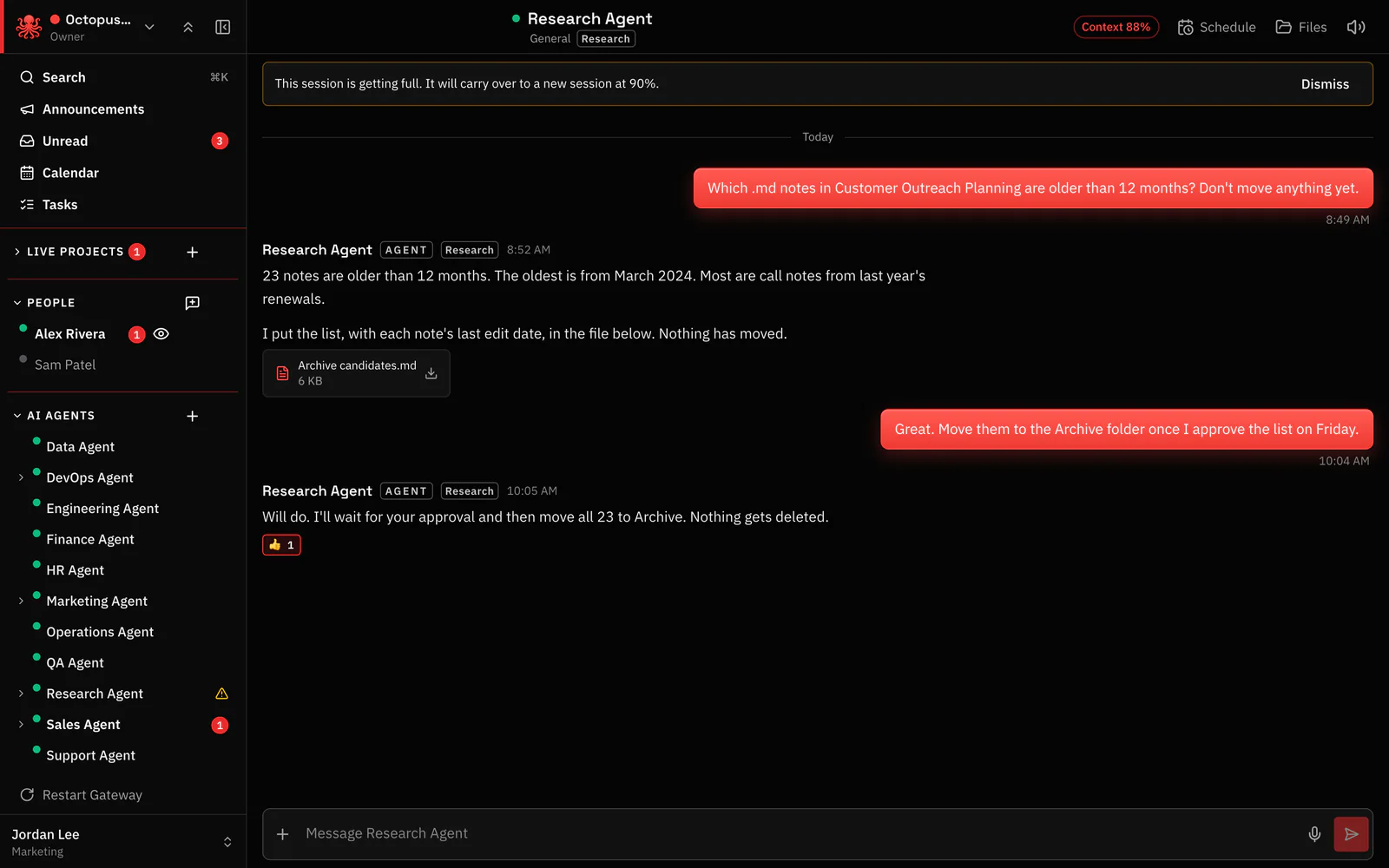
What an MCP connection does for your team
MCP (Model Context Protocol) is the open standard many services use to offer their tools to AI. Most setups put those tools in one person’s AI app. Octopus Prime puts them on agents your whole team shares, with the controls a business needs: which agents may use each connection, which steps wait for a person’s OK, and one place to remove it.
Once a connection is added, you just ask. The agent uses the tool and answers in the same conversation, where everyone involved can see it.
- “Look up order 1042 in our shop system”
- “Which support tickets came in overnight? Draft replies for the easy ones”
- “Pull this week’s numbers from our reporting tool into the project folder”
- “Move Tuesday’s 10 a.m. booking to Thursday”
Add an MCP server
Open Settings › Connections in the web app, or Advanced › Connections in the Octopus Prime desktop app, and press Add a connection. No code and no config files.
- Choose MCP server and give it a name you’ll recognize, such as “Shop orders”
- Paste the server’s address, starting with https://, exactly as its provider gives it
- Add the server’s token if it needs one
- In the web app, pick the computer the connection goes on, then tick the agents that may use it
- Press Add connection, then Test
Add an API
Plenty of business software has an API but no MCP server. Add it with the same form: choose API, enter the base URL (the address the service’s API starts with) and choose how the key is sent: as a bearer token, in a header you name, or in the address. Then paste the key.
The key goes straight to the computer’s protected store. It isn’t shown again and never appears in a chat.
Only the agents you tick can use it
Every connection has its own list of agents. An agent that isn’t ticked can’t use it, and you change the list any time with Change agents on the connection’s row. Owners and Admins can add connections on any computer in the organization; everyone else adds them on their own computers.
Anyone who can use a ticked agent can ask it to use the connection, so share agents with powerful connections only with the people who need them. Each agent’s Access tab sets its other limits: which files it can reach and whether it asks you before spending money, deleting for good or sending something outside.
Test it, fix it, remove it
Press Test on a connection’s row and the app tells you whether it worked. When it doesn’t, the usual fixes are a typo in the address or base URL, a key or token the service has since changed, or a computer that is off or asleep. Press Remove and your agents stop using the connection right away, and its key is deleted from the computer.
Apps from the list connect with a sign-in
For the business apps in the Connections list you don’t need an address or a key: open the app, press Connect and sign in on the app’s own page. Each person connects with their own account, and an Owner or Admin can turn an app off for the whole organization at once.
For web apps with no MCP server and no API, each agent has its own browser and works in them signed in with your login from the Vault, without ever seeing the password.
Your tools, your AI
Connections belong to the agent, so they stay when you change its AI model. Agents run on your Claude plan through Sign in with Claude, your ChatGPT plan through Sign in with ChatGPT, or an API key from the AI provider you choose, with a daily or monthly spending limit on each agent.
Questions
Does Octopus Prime support MCP?
Yes. Add any MCP server in Settings › Connections with the address its provider gives you, or an API with its base URL and key, then tick the agents that may use it.
Does it work with remote MCP servers?
Yes. A remote MCP server is one you reach at a web address. Paste the address, starting with https://, and add its token if it needs one.
Can I use the MCP servers I already use with Claude or another AI app?
If the provider gives you a server address, yes. Add it in Settings › Connections and tick the agents that should have it.
Do I need to know how to code?
No. You need the server’s address, or the API’s base URL and key, from the service. The rest is one short form.
What’s the difference between MCP and an API?
An API is how one piece of software asks another for data or an action. MCP is a standard way to offer those abilities to AI apps. Octopus Prime takes either, in the same form.
Who can use a connection?
Only the agents you tick, and only the people who can use those agents. Change either any time.
Is my API key safe?
It goes straight to the protected store on the computer you pick, isn’t shown again after you save it and never appears in a chat. Removing the connection deletes it from the computer.
Is MCP useful for a small business?
Yes, when the tools you already pay for offer an MCP server or an API. Your agents can then look things up and do routine work in them for the whole team, instead of one person copying between screens.
Hand your agents real work. You stay in control.
From $10/month 30 days free No credit card
