
Connect OpenClaw without opening ports
“Setting up channels is a pain, and I don’t want to expose my Gateway to the internet.”
Every chat channel wants something: a bot token from one app, a developer app in another, the right scopes in a third. Then you want to reach the Gateway from outside, and the guides start talking about port 18789, reverse proxies and tunnels.
You just want your agents somewhere you and your team can reach them, without putting your Gateway on the internet.
Why it happens in OpenClaw
- The Gateway listens on your own machine, on port 18789 and loopback only by default. Reaching it from another network means a tunnel, a VPN or an exposed port with authentication.
- Each chat-app channel has its own setup: a bot to register, a token to store, pairing to approve.
How Octopus Prime solves it
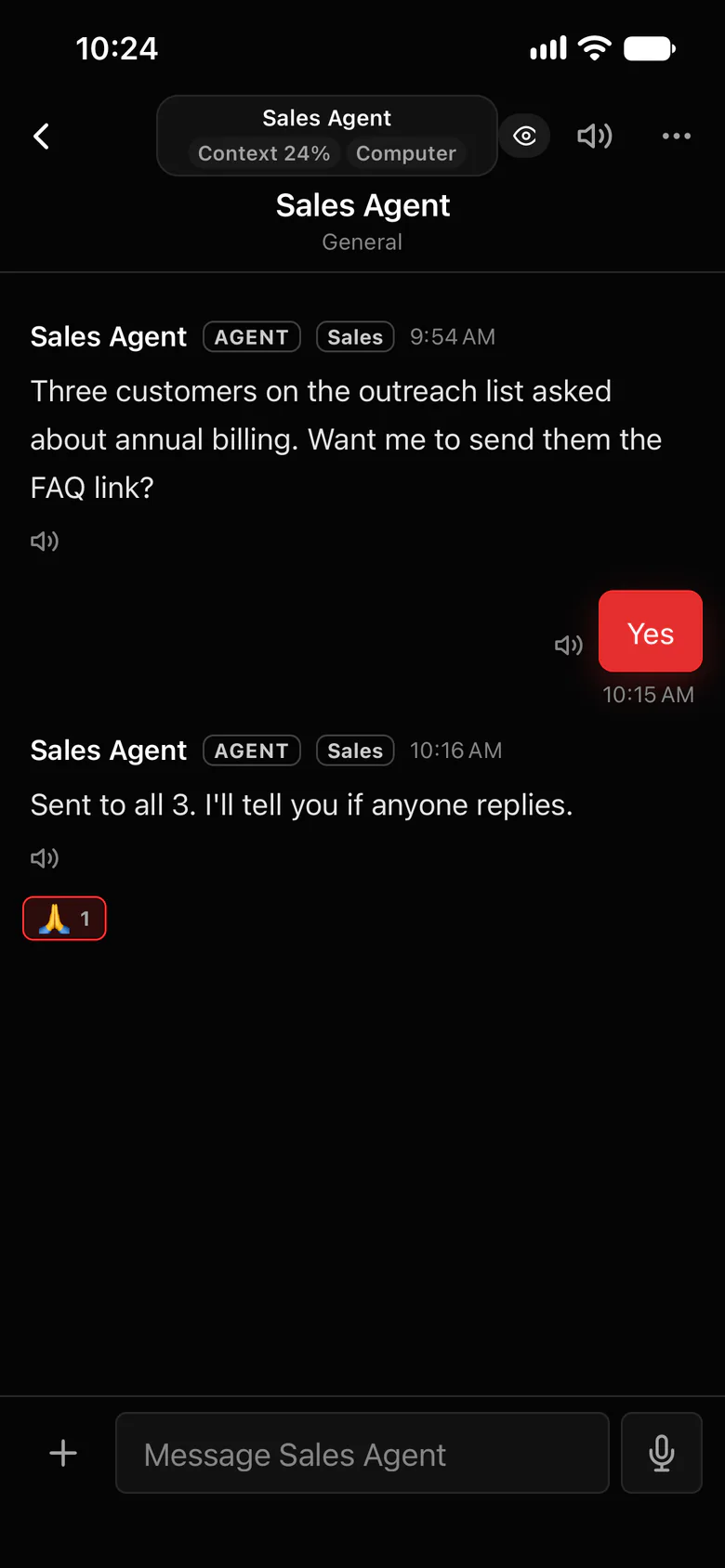
One setup code, nothing opened.
You open no ports and give your computer no public address. No tunnel, no VPN, and no bot to register for each chat app.
- In the app, Settings › AI agents › Connect OpenClaw gives you a one-time setup code and shows the exact install step for your computer.
- The setup code works once, within 15 minutes.
- Or click Copy setup prompt and let your own agent do the Gateway side.
- Everything between your Gateway and Octopus Prime is encrypted in transit.
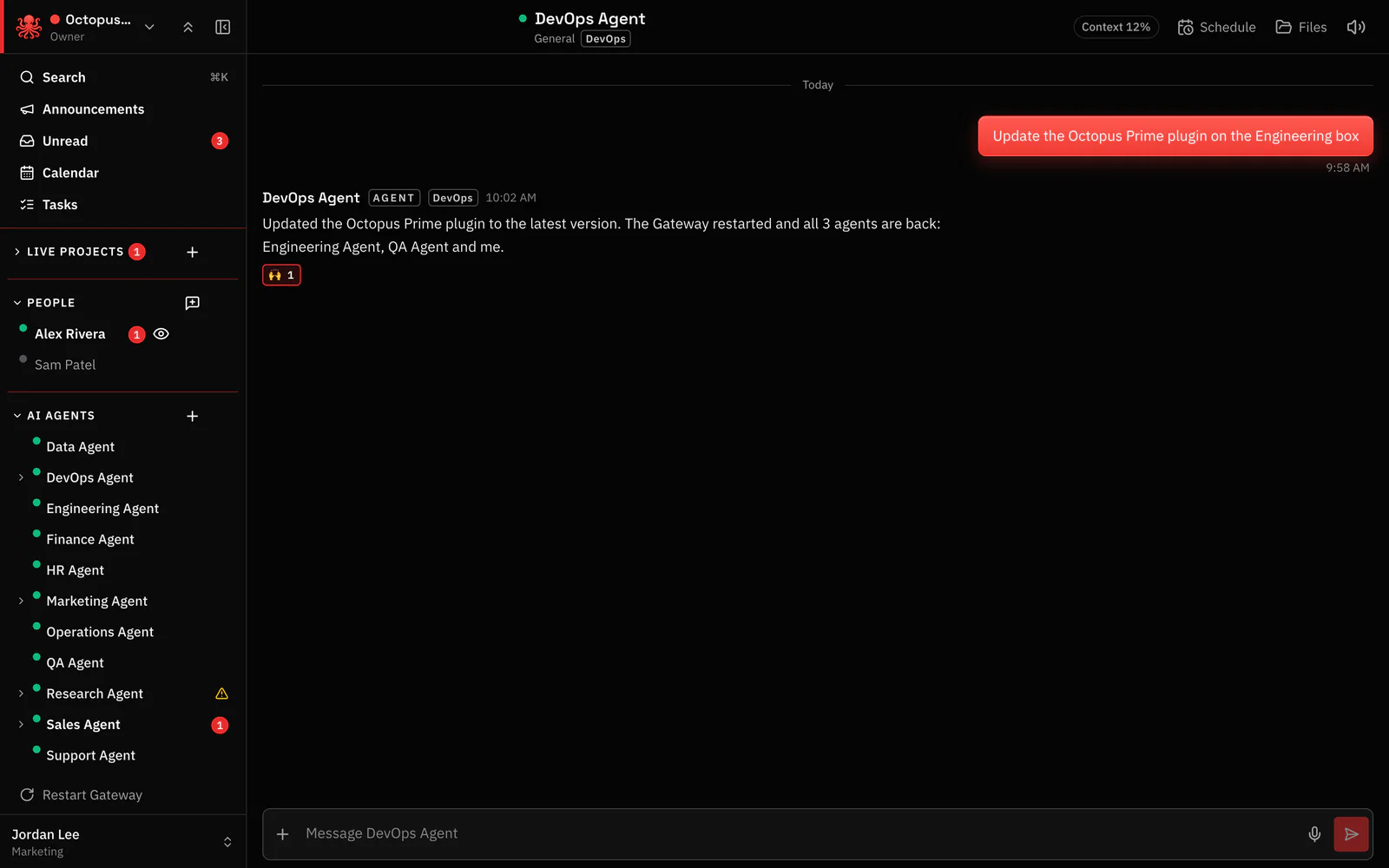
- Updates: Settings › Plugin shows whether each Gateway is up to date, and Ask my agent to update has the agent update it, restart its Gateway and report back.
-
Start your free trial
Sign in with Apple or Google and create your workspace. 30 days free, no card. Start free trial
-
Get your setup code
In the app, an Owner or Admin opens Settings › AI agents › Connect OpenClaw. It gives you a one-time setup code and shows the exact install step for your computer.
The code works once, for 15 minutes. OpenClaw 2026.9.8 or newer.
-
Your agents show up
Follow the step the app shows, or let your own agent do it with Copy setup prompt. Every agent on that Gateway appears in Settings › AI agents, ready to share and add to projects.
Where to find it in the app
- In the app, open Settings › AI agents › Connect OpenClaw. It gives you a one-time setup code and shows the exact install step for your computer.
- Follow that step on the computer that runs the Gateway.
- Or click Copy setup prompt and send it to your agent, and it does the Gateway side for you.
- Your agents appear in Settings › AI agents. Share them, and add them to channels.
Related features
Questions
Do I need to open port 18789 or set up a tunnel?
No. You open no ports and give your computer no public address. There’s no tunnel and no VPN to set up.
Which OpenClaw version do I need?
OpenClaw 2026.9.8 or newer, on your own Gateway. Your agents keep their own config, models and tools, and run on your own AI account or plan.
How do I keep my Gateways up to date?
Settings › Plugin shows whether each Gateway is up to date. The Gateway’s owner clicks Ask my agent to update, and the agent updates it, restarts its Gateway and reports back.
